Quick Reference – eForms
Highlights:
-
This is a Premium feature.
-
Each eForm must be set up as a template before it can be sent as a document, refer to the eForms - Creating eForms User Guide.
-
eForm templates can be set up to pull in applicant specific information (similar to email templates) using #tags#. Custom fields can also be set up.
-
Each eForm template is unique and can have a different approval chain.
-
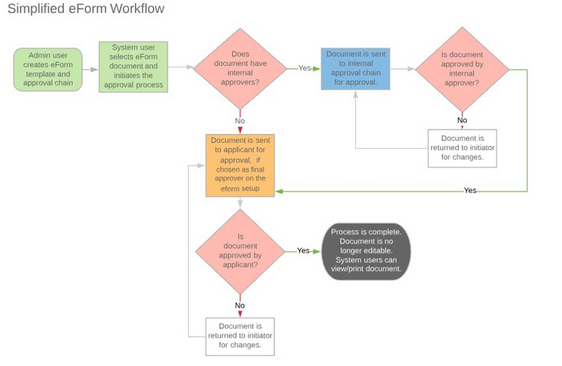
Depending on how the eForm template was created, an eForm document may or may not require internal approval from management before going out to the applicant.
-
Only Admin users have access to set up eForms; but all user types who are granted access can send eForms.
-
Users with View-only access cannot edit, initiate, bypass approvers or resend emails.
-
Users without view access cannot see the eForms tab on apps.
-
Approval for the document can only be done from the email link, it cannot be done within the applicant record. The link takes the applicant right into the form, no login required. This email to the applicant is not editable.
-
If the document has internal approvers, each approver in the chain must approve the document before it will be sent to the applicant for approval. If the document doesn't have internal approvers, this step will be skipped.
-
All approvers, including the applicant, can approve or reject the document.
Items to Note:
-
Once initiated, an eForm cannot be deleted.
-
You cannot collect SSN or DOB on an eForm.
-
Only the person who initiates a document can edit a document after it has been sent for approval and while it is still pending approval.
-
Changes to the eForm template need to go through an Admin user on the account. This includes adding custom fields that can be pulled from the application and correcting formatting doesn't look correct, for example.
-
Make sure that the "The Applicant is the final Approver" checkbox is clicked to get a signature from the applicant during the approval process.
-
The system will only show one timestamp and note entry per approver. Any notes added by an approver during a subsequent approval process will OVERWRITE notes made by an approver during the initial approval process. Timestamp information will also only display the most recent entry.
Workflow: